






Open a saved Mac or Windows PC, then choose Input. The trackpad, keyboard, and Live View share this screen. Connect first using the setup guide.
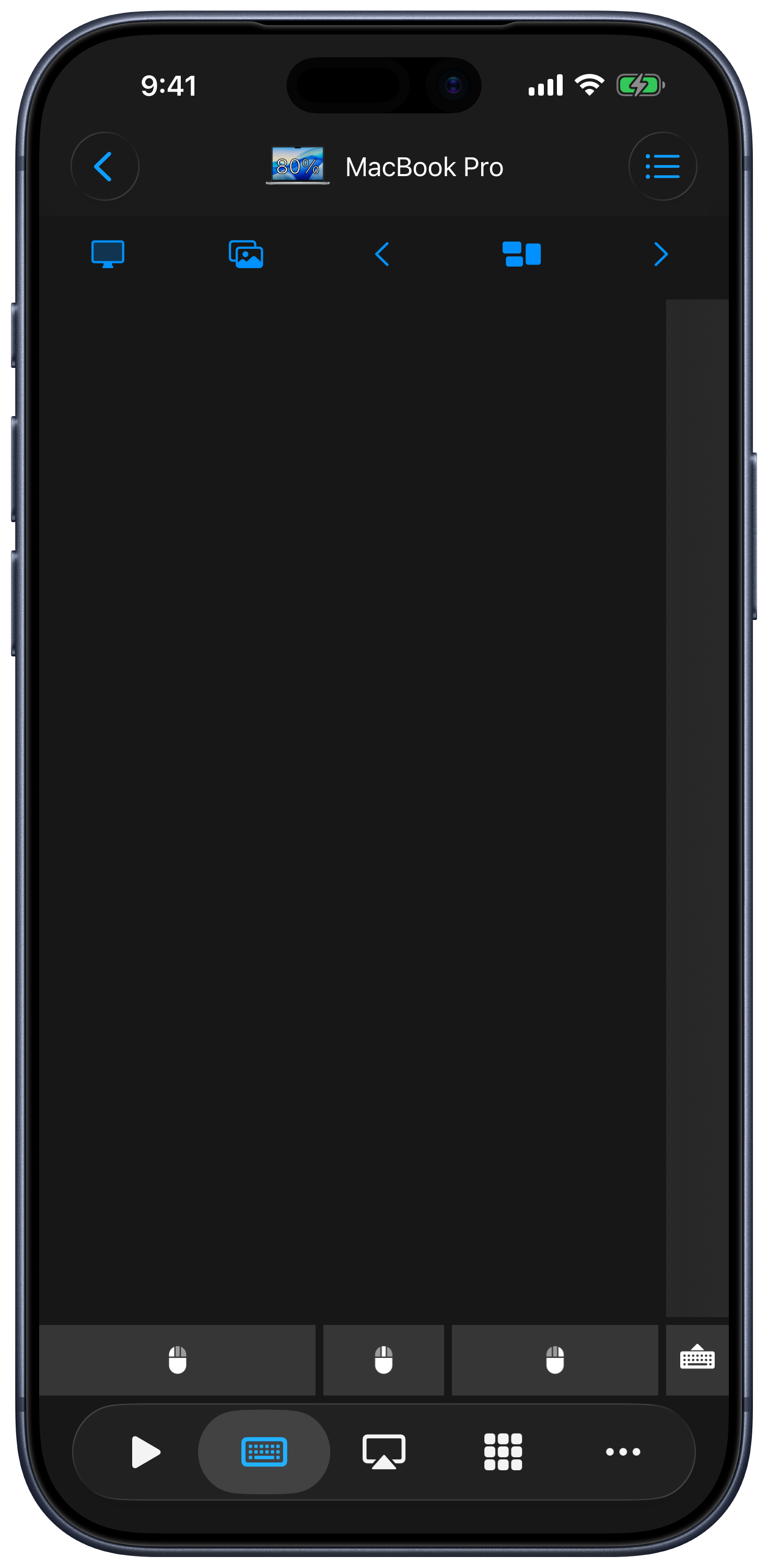
Mouse
Move one finger over the trackpad to move the computer pointer. The default gestures are:
| Gesture | Action |
|---|---|
| One-finger tap | Left click |
| Two-finger tap | Right click |
| Three-finger tap | Middle click |
| Two-finger vertical or horizontal movement | Scroll |
| Three-finger movement | Drag or select |
Hold the left mouse button to keep it pressed for dragging, then tap it to release. The scroll strip also supports one-finger scrolling. Double Tap to Hold is available in Keyboard & Trackpad settings.
Keyboard
- Tap the keyboard button on the Input screen to show or hide the keyboard.
- Type into the focused field on your computer. The extra key rows provide modifiers and navigation keys.
- Hold the keyboard button to choose another keyboard type, including function keys and numeric layouts.
- Hold a modifier to lock it, then tap to release. If you prefer tap-to-lock behavior, enable Tap to Lock Modifier Keys in settings.
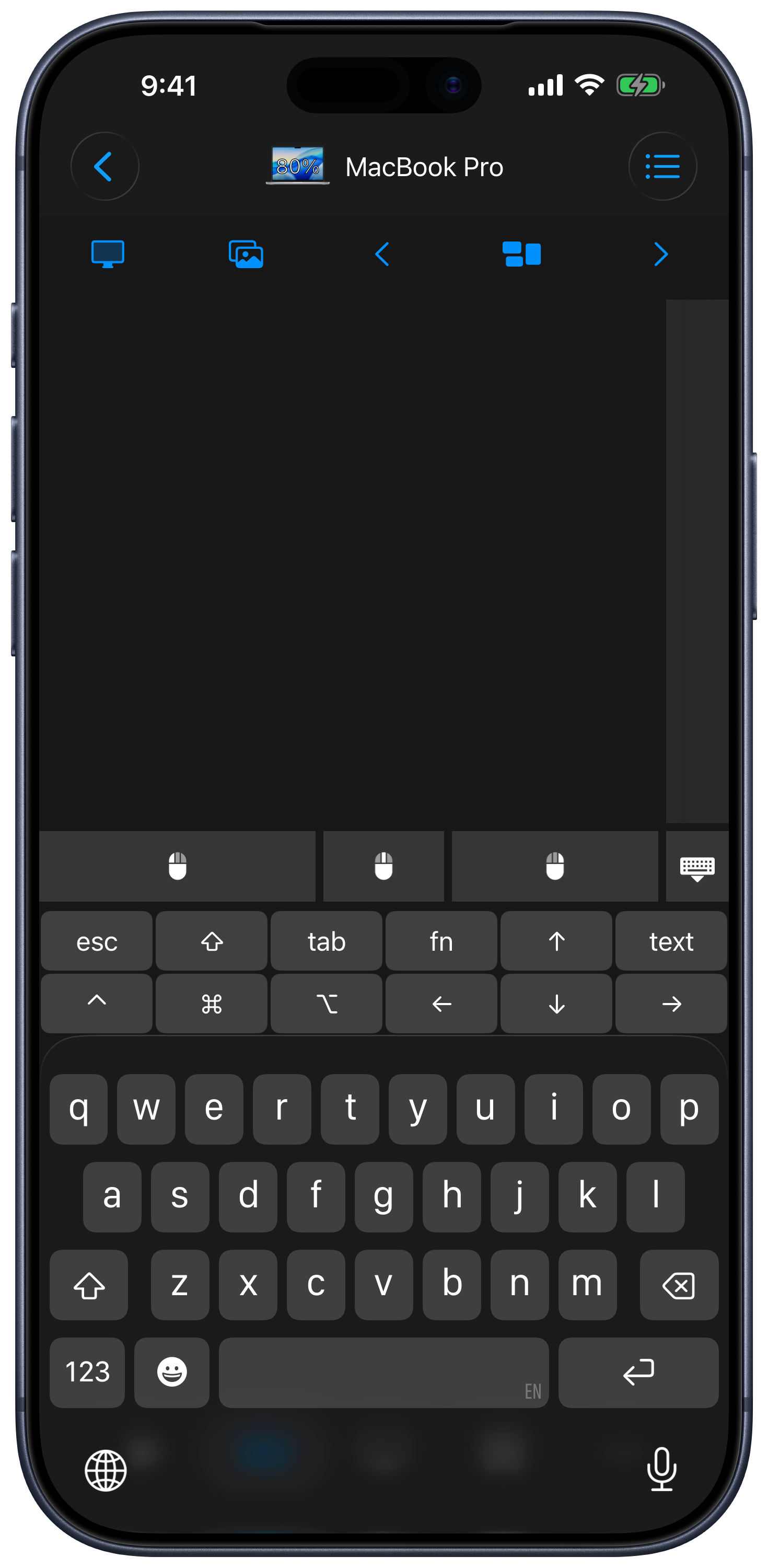
Use the text-entry control to compose or paste text, or use dictation when it is available on your device. Preview in Keyboard & Trackpad settings lets you review text before it is sent. Input goes to whichever app or text field currently has focus on the computer.
Live View
Tap Live View in the Input Bar to see your computer screen. Hold the button to switch between Follow and Fit. Follow lets you work with the view around the pointer; Fit shows the screen within the available space.
On Mac, Remote Helper needs permission to record the screen. The Take Screenshot button saves a capture to Photos and also needs permission to add photos on your iPhone or iPad.
Customize the Input Bar
Open the Input screen’s menu and choose Edit Top Bar to open the Input Bar editor. You can include Live View, Take Screenshot, and keyboard shortcuts. Mac and Windows keep separate Input Bar layouts. Desktop-navigation buttons depend on the connected computer and your saved layout. Edit Keyboard in the same menu customizes the extra keyboard keys.
Keyboard & Trackpad Settings
Open Settings → Keyboard & Trackpad from the device list. Available options include:
- Live View: H264 streaming, display scaling, and preventing sleep while Live View is active.
- Trackpad: left-handed layout, hidden mouse buttons or scroll area, natural scrolling, pinch to zoom, and Top Mouse buttons.
- Movement: tracking speed, scrolling speed, and Double Tap to Hold timing.
- Keyboard: third-party keyboards, Tap to Lock Modifier Keys, Auto. Show Keyboard, text Preview, and the control for disabling keyboard input.
See Settings and customization for the related appearance and device options.